Guides
How to remove EXIF data from a photo (JPG/PNG/HEIC)
What EXIF metadata a photo carries, how to remove or rewrite it cleanly in JPG, PNG and HEIC, and why that alone doesn’t make an image unique.
10 min read · Updated October 9, 2026
By Steven S. · Founder of Klypsed
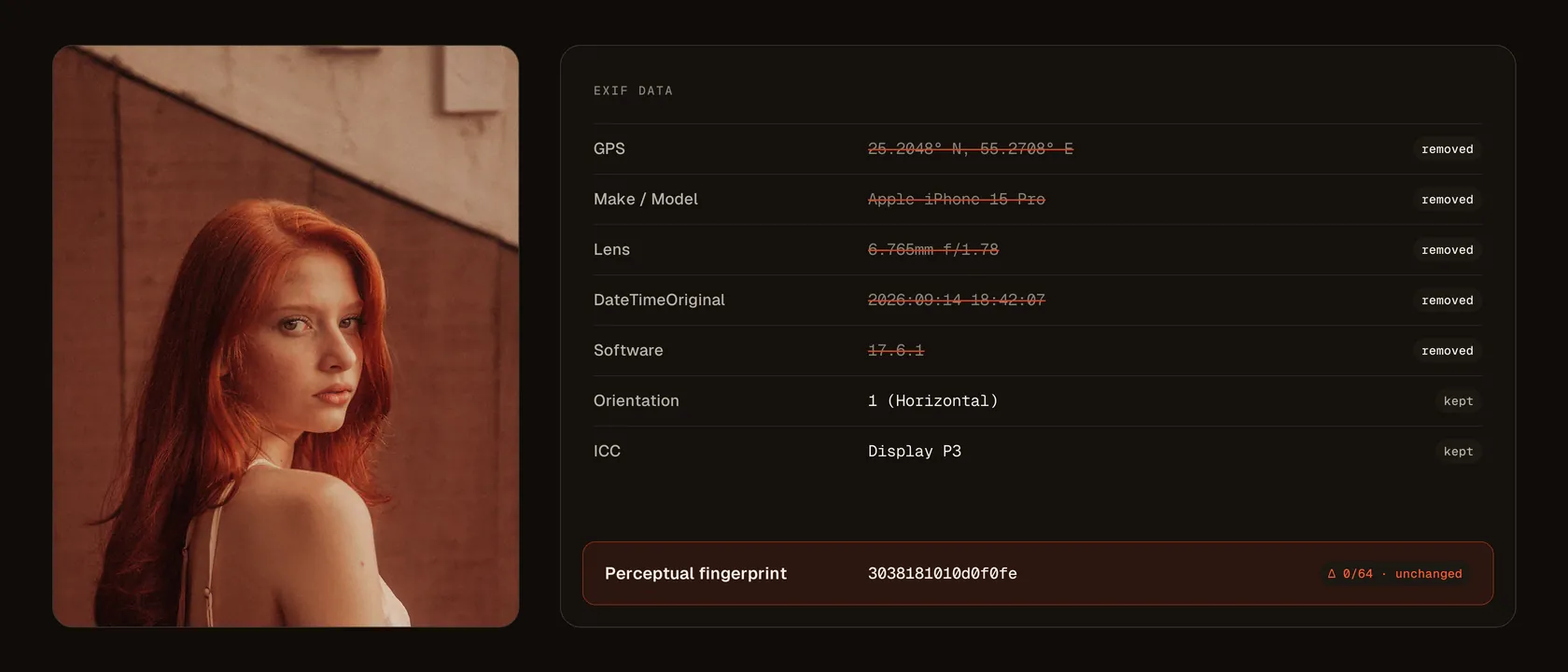
Every photo taken with a phone or camera carries EXIF metadata: camera model, date and time, settings, sometimes a GPS location. Before sharing an image online, it’s healthy to know what it carries and to clean up what shouldn’t go out. Here’s how to do it cleanly across the common formats.
What EXIF contains
EXIF is a block of information stored next to the pixels. It typically holds:
- the device: make, model, sometimes a serial number;
- the capture: date, time, aperture, shutter speed, ISO, focal length;
- the location: latitude and longitude if GPS was on;
- the software: the app that exported the file, plus orientation.
This data doesn’t change what you see. It mainly reveals the file’s origin. Stripping GPS from a published photo is a good privacy habit.
Removing EXIF by format
- JPG: the most common format, it carries a full EXIF block. Most editors offer an export “without metadata”.
- PNG: it carries less EXIF than JPG, but can hold text chunks and a date. A re-export clears them.
- HEIC: the format of recent iPhones. It stores EXIF like JPG; some consumer tools handle it poorly, which is why a program that reads it correctly matters.
On Windows, right-click then “Properties” and “Remove Properties” strips some fields. On macOS, Preview lets you edit the inspector. For reliable, batch handling, a dedicated tool stays safer.
Rewriting EXIF rather than emptying it
Wiping EXIF entirely can look suspect: a photo with no metadata at all often signals it passed through a tool. Rewriting coherent values — a plausible date, a credible camera model, no GPS — is sometimes preferable to a full wipe. The goal is cleanliness, not faking a record.
Why EXIF doesn’t make a photo unique
This is the key point. Editing or erasing metadata never touches the pixels. Yet platforms compare images on their perceptual fingerprint, computed from what you see, never from the EXIF. Two photos with identical content but different metadata stay twins to a detection system.
We go into this mechanism in why changing metadata is not enough. To create a real version of an image, you have to act on the pixels themselves: a light crop, a mirror, micro-variations in light and a fine grain. That’s what Klypsed applies to every variant, with the fingerprint distance measured on each file; the tool downloads and works entirely on your own computer.
See what a photo contains
- Windows: right-click the file, “Properties”, “Details” tab.
- macOS: open the photo in Preview, “Tools” menu, “Show Inspector”, then the info tab (EXIF, GPS).
- iPhone: in Photos, swipe up on the photo or tap the info button: device, settings and location appear.
- Android: in Google Photos, swipe up to show details, including location if it was recorded.
Do social networks strip EXIF?
Most major networks remove much of the metadata from published images, starting with location. That isn’t guaranteed for every service, nor for files sent as attachments, through messaging or via a shared cloud folder: the file often travels as is. Cleaning before sending is the only guarantee.
Only share photos you own the rights to, with the consent of the people depicted, and follow each platform’s terms of use, including their rules on AI-generated content and on running several accounts. Cleaning EXIF is a privacy measure: no metadata setting guarantees a post’s visibility, and both moderation and recommendations also depend on account behaviour and reports.
In short
Cleaning or rewriting the EXIF of a JPG, PNG or HEIC is good publishing hygiene, especially for removing GPS location. But it’s a privacy operation, not a uniqueness one: only changing the pixels creates a genuinely distinct version of an image.
Frequently asked questions
How do I remove a photo’s location on iPhone?
Before sharing, tap “Options” at the top of the share sheet and turn off “Location”. To stop recording it altogether: Settings, Privacy & Security, Location Services, Camera, “Never”.
Does removing EXIF reduce photo quality?
No, if the tool removes the metadata block without re-encoding the image. A JPG re-export, on the other hand, recompresses the pixels: pick a high quality setting.
Do screenshots contain metadata?
Little: usually the date, dimensions and sometimes the software, without GPS location. They’re still files worth checking before sharing.
Does converting HEIC to JPG keep the EXIF?
Usually yes: most converters copy the metadata across. Check the converted file and clean it if needed.
Does removing EXIF make a photo unique?
No. Platforms compare pixels, not metadata. See why changing metadata is not enough.